Real-world insights on Full Stack development, AI-assisted workflows, and software architecture.
Note: I’m a native Spanish-speaking Full Stack Developer writing in English to enhance my technical communication skills. Feedback on code, architecture, or grammar is always welcome!
AI agents in the terminal are powerful, but they aren’t bulletproof. Here is how I recovered lost changes using VS Code’s built-in tools.
I have been using Claude Code directly in my terminal for several months as part of my daily Full Stack development workflow. It has significantly boosted my speed when refactoring code, writing unit tests, and building feature boilerplates.
However, working with autonomous AI agents comes with a learning curve. A few days ago, while prompting Claude Code to execute a refactoring task, something went wrong during a git operation, and a recent commit with unpushed changes seemed to vanish.
If you use AI assistants in your terminal, you will eventually face a moment where the agent overrules or overwrites something unexpectedly. Here is what happened and how I recovered my code in under two minutes.
The Incident: A Missing Commit
While working on a feature, I asked Claude Code to perform a multi-file refactor and handle the commit process. Due to a context mismatch in the terminal execution, the recent local commit was detached, leaving my working directory in an unexpected state without the updated changes.
My immediate reaction was to check git reflog, but since the changes hadn’t been fully tracked in the branch head yet, the standard Git safety net wasn’t enough.
That’s when Claude Code itself suggested a feature built right into Visual Studio Code: Local History.
The Solution: VS Code Local History
VS Code automatically tracks local revisions of your files every time you save them, independent of Git commits or stashes. This timeline acts as an extra safety net when local files are overwritten by external scripts, CLI commands, or AI agents.
Here is how to access and restore your files:
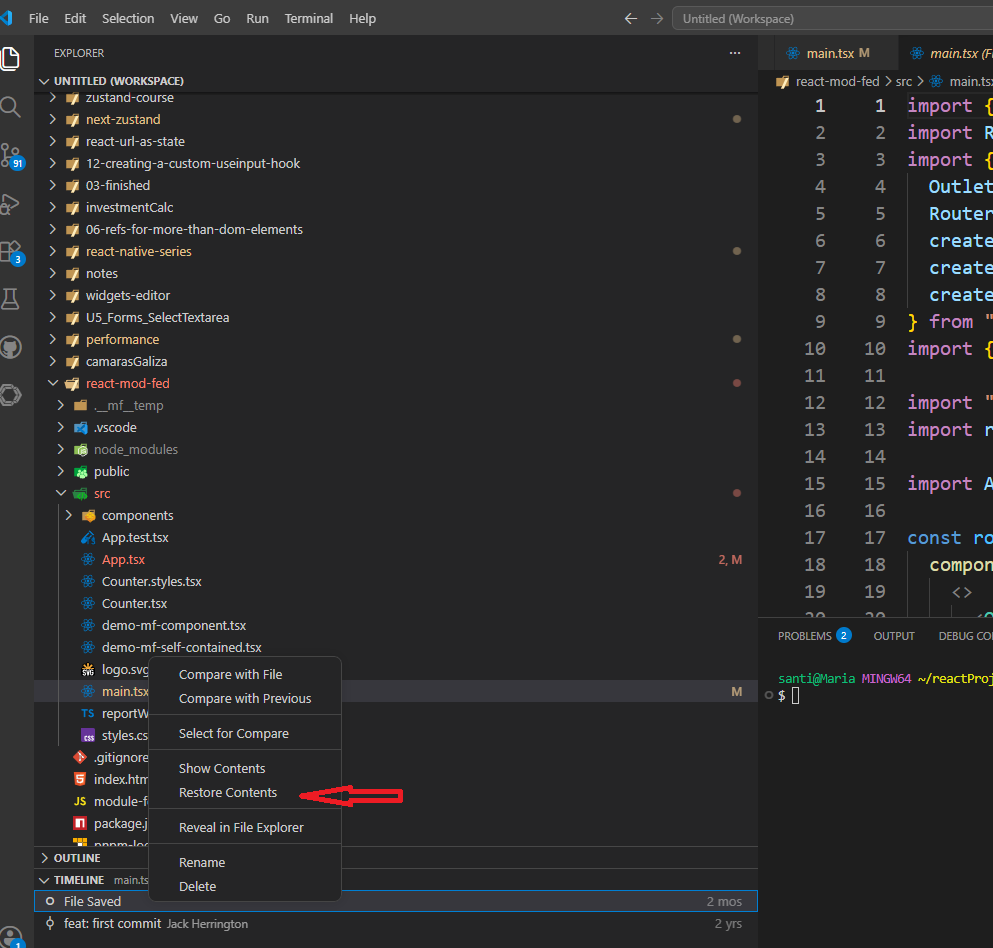
Open the file that was overwritten or lost in VS Code.
Open the Explorer panel on the left sidebar.
Scroll down to the Timeline section.
Click through the chronological list of file saves to compare differences (diff view).
Right-click the snapshot prior to the incident and select Restore Contents.
Restoring a previous file version using the Timeline panel in Visual Studio Code.
Tip: You can also right-click any timestamp in the Timeline panel to compare that specific version directly against your current file state.
Key Takeaways for AI-Assisted Workflows
Working with AI tools in the CLI requires adopting a few defensive habits:
Commit frequently: Make small, granular Git commits before letting an AI agent execute complex multi-file refactors.
Don’t rely solely on Git: Keep tools like VS Code’s Timeline / Local History in mind for local file recovery.
Review agent actions: Always inspect the diffs before running destructive git commands or script executions suggested by terminal agents.
Have you ever lost code while working with an AI CLI tool? How do you manage safety nets in your developer workflow?
https://jlvbcoop.com/wp-content/uploads/2026/09/jlvbcoopLogo.svg00josecho1969https://jlvbcoop.com/wp-content/uploads/2026/09/jlvbcoopLogo.svgjosecho19692026-09-20 08:26:302026-09-20 21:23:12When Claude Code Lost My Commit: How VS Code Local History Saved the Day